








5 Essential Computer Tools for Low-Vision High School & College Students

Key Takeaways
- Curated for low-vision high school and college students in the U.S., this guide rounds up 5 laptop-compatible software and hardware tools covering all core daily learning scenarios.
- The toolkit includes four software solutions — built-in display optimization, text-to-speech, immersive focused reading, and accessible PDF viewing — most of which are completely free for students.
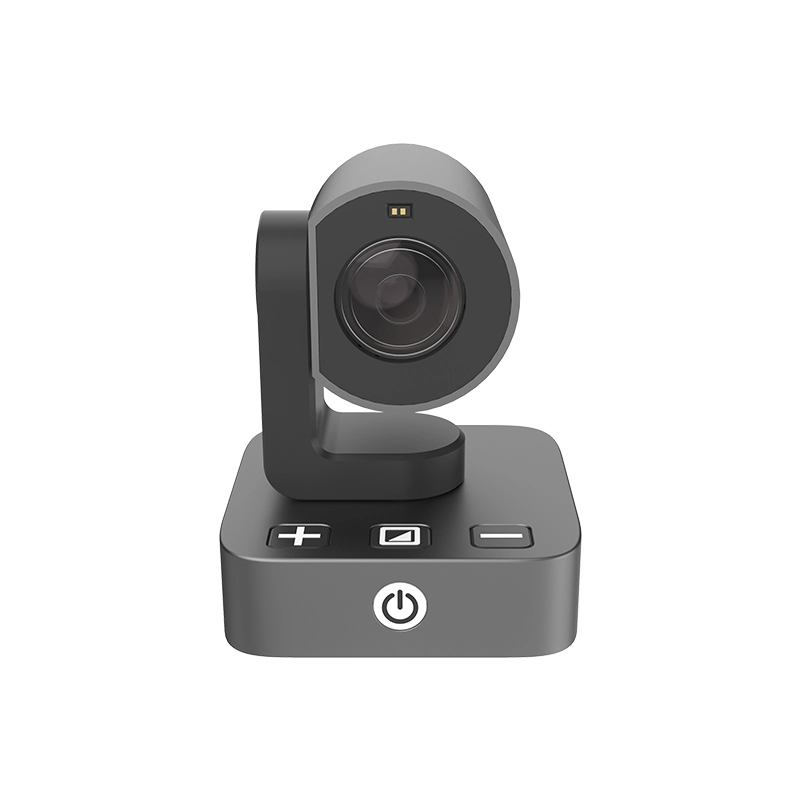
- For classroom distance viewing, Zoomax Snow Eye is a practical portable camera solution that integrates long-range magnification directly into your existing laptop workflow.
- All tools are selected to reduce visual and mental fatigue, streamline study routines, and keep pace with fast-paced class schedules.
Starting high school or college comes with a mix of excitement and fresh starts — new classes, new routines, and the chance to dive deeper into subjects you care about. But for students with low vision, a new school year also brings new challenges to navigate: denser course material, faster-paced lectures, and more hopping between classrooms and buildings all day long.
At the same time, the learning environment itself has changed. Today, most US high school and college coursework lives online — handouts, syllabi, quizzes, and feedback are all delivered through platforms like Canvas and Blackboard, and most students complete nearly all their work on a laptop.
For low-vision learners, this shift creates new demands. As you advance into high school and college, laptops become increasingly central to every part of your learning routine — making it critical to seek out purpose-built software and hardware for computer use that cuts down on visual fatigue and boosts learning efficiency. The right tools should support your workflow, not add extra friction to it.
This guide is a curated list of software and hardware tools built for the laptop ecosystem — to help you upgrade your setup to match your academic load and make every school day feel more manageable.
Built-In Screen Magnification & Display Settings: Your No-Cost Base Layer
Before you download any new apps or buy any gear, start with the tools already on your laptop. Both Windows and macOS come with powerful built-in computer screen magnification software and display customization options that many students never fully explore. This is the most foundational layer of low vision aids for computer use, and it costs nothing to set up.
You’re probably familiar with basic zoom controls, but tweaking your display settings can make a huge difference in daily eye strain. Adjust high-contrast themes to make buttons and menus easier to spot, turn on color filters to reduce glare from bright white backgrounds, and enable blue light filtering for long evening study sessions. These are simple, effective ways to optimize computer screen magnification for visually impaired users without extra downloads.
These settings work seamlessly with all the major school platforms you use every day, from Canvas to Google Classroom to Microsoft Office. Best of all, they’re completely free, require no extra downloads, and work with quick keyboard shortcuts. For any low-vision student, this is the highest-impact, lowest-effort upgrade you can make.
Once your base display is comfortable, it’s time to tackle the biggest source of eye strain for most students: heavy reading loads.
Text-to-Speech Tools: Lighten Eye Strain During Heavy Reading Weeks
High school and college come with a massive jump in reading volume—textbook chapters, academic articles, lecture notes, and study guides can add up to hours of screen time every day. When your eyes feel tired and sore from focusing on small text, text-to-speech tools let you keep learning without pushing through visual fatigue.
Tools like NaturalReader are widely used by students across the US, and many school disability services offices even recommend them directly. The free tier works great for most daily needs, and supports common file formats like PDF, Word, and web pages.
NaturalReader® Official Logo
Use it to walk through textbook chapters while you take notes, listen to review guides during your commute between classes, or rest your eyes during late-night study sessions. It’s a simple way to cut down on total screen time without falling behind on coursework.
Text-to-speech is perfect for lighter reading and review, but when you need to focus closely on notes, memorize key terms, or follow along with dense content, you need a tool built for focused study.
Immersive Reader Tools: Stay Focused Through Notes, Study Sessions & Lectures
Dense text, crowded notes, and long study sessions can easily lead to skipped lines, lost focus, and slower retention—especially when you’re working with enlarged text. Immersive reader tools solve this by creating a clean, distraction-free reading experience tailored to your vision needs.
Microsoft OneNote’s Immersive Reader is a great fit for US high school and college students, since most schools offer free Microsoft 365 access with student email accounts. It lets you isolate single lines of text, adjust font size and spacing, and switch to high-contrast mode. You can even have text read aloud at a speed you choose.
Microsoft OneNote® Immersive Reader Official Logo
Since it syncs across all your devices, it works perfectly for busy schedules: type up lecture notes on your laptop in class, then pull them up on your tablet to review later in the library. It’s especially helpful for keeping up with fast-paced lectures and organizing notes for midterm and final review.
Digital notes and slides are easy to adjust, but scanned handouts, old textbook PDFs, and printed exam packets still pose a common frustration for low-vision students.
Accessible PDF Readers: Make Textbooks & Scanned Handouts Actually Work For You
Professors and teachers love to share scanned lecture notes, copied textbook pages, and old exam PDFs—and for low-vision students, these files can be a major frustration. Standard zoom tools just make the whole page bigger, leaving you scrolling back and forth and dealing with messy, misaligned text.
An accessible PDF reader like Adobe Acrobat Reader fixes this with built-in accessibility features. It can reflow text to fit your screen size, so you don’t have to scroll horizontally to read each line. It also supports magnification, text-to-speech, and high-contrast viewing modes.

Adobe Acrobat Reader® Official Logo
The free version includes all the core features most students need, making it an essential tool for reading textbook PDFs, printed handouts, and practice exams. It’s a simple upgrade that makes course materials far more usable.
All of the tools above work great for content on your screen—but they can’t bridge the gap between your laptop and what’s happening at the front of the classroom. For blackboards, whiteboards, and live in-person content, you need a hardware solution that integrates distance viewing into your existing screen workflow. This is where Snow Eye video camera magnifier fill a critical gap in standard tools for visually impaired students.
Classroom Distance Viewing Tools: Zoomax Snow Eye Portable Magnification Camera
Many low-vision students rely on a separate low vision aids for distance vision to see the front of the classroom. But constant visual switching between your laptop and this secondary device creates unnecessary friction. You lose your place in your notes, miss parts of the lecture while adjusting your view, and end up working harder just to keep up, rather than engaging with the material.
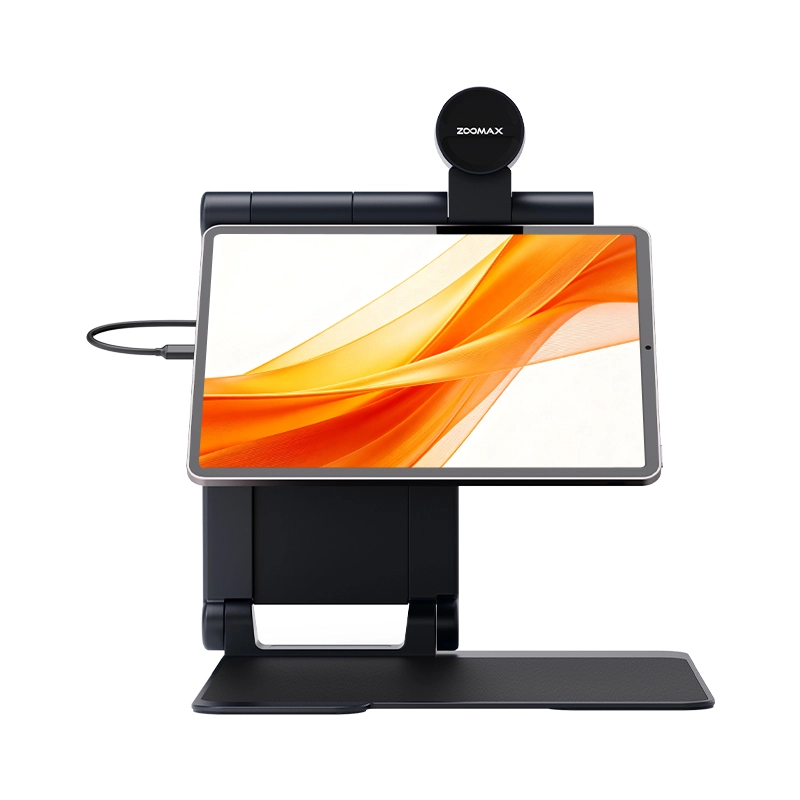
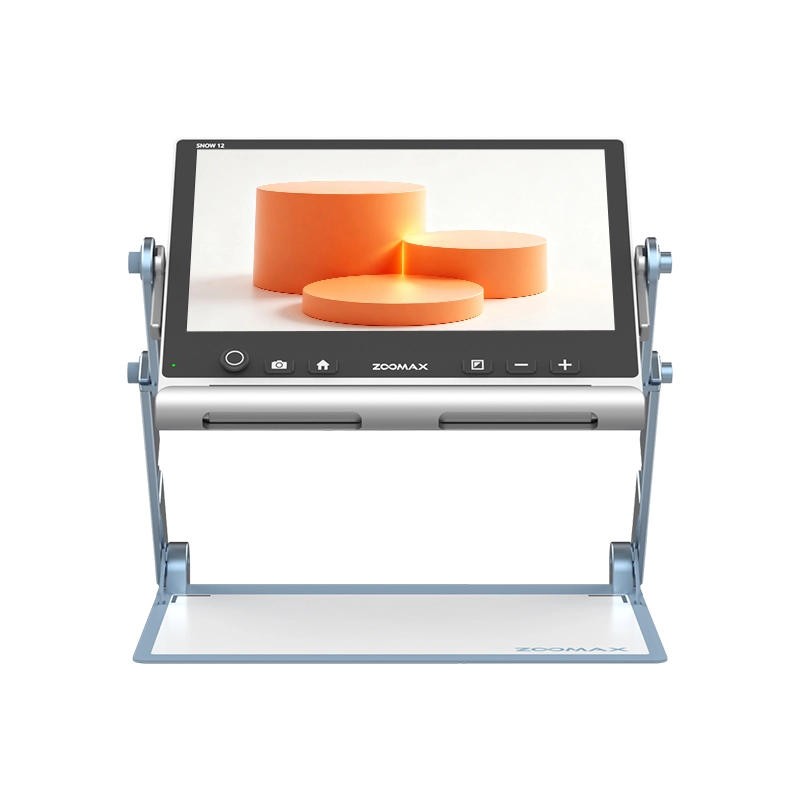
Zoomax Snow Eye is a portable video camera magnifier designed to solve this exact problem. It features a premium optical lens with fast autofocus, delivering crisp, steady magnification even for content 10+ meters away — whiteboard text, slide details, and demo steps all stay sharp with no laggy refocusing.
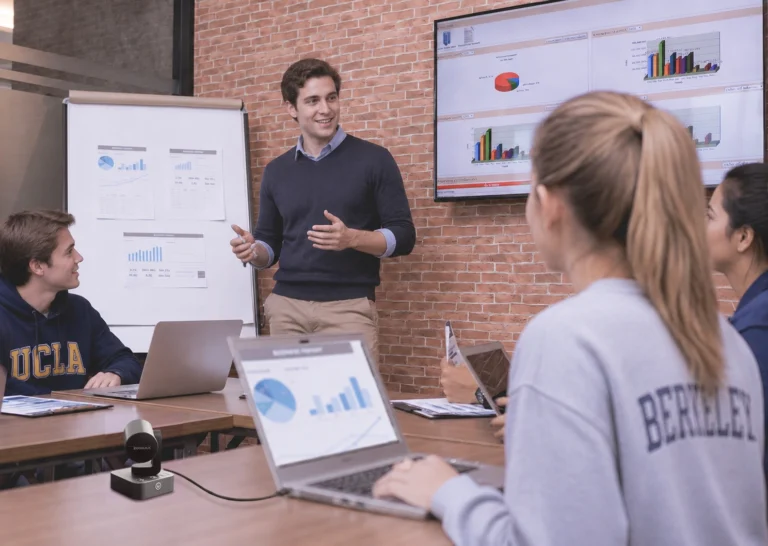
It connects directly to your laptop via USB with simple, straightforward setup. For Windows laptops, it works fully plug‑and‑play with no extra software required. For MacBooks, you’ll only need to install the Quick Camera app as a one‑time setup before first use — no ongoing software maintenance or updates are needed for daily operation. Once plugged in and powered on, a sharp, lag‑free magnified live view of whatever’s in front of you appears straight on your existing screen — no extra dedicated viewing device, no constant shifting between separate tools. As one of the most versatile products for visually impaired learners, it turns your everyday laptop into a complete distance-viewing station.
Key use cases for college students:
- Large lecture classes: View magnified blackboards, whiteboards, and presentation slides side-by-side with your note-taking app on the same screen. Capture screenshots to paste directly into your class notes, so you never miss a key point or fall behind while switching views.
- Group work & lab sessions: With a simple adjustment of the camera lens angle, you can clearly view shared whiteboards, lab demonstrations, and student presentations with ease. You can follow along with group discussions and hands-on activities while keeping your notes open on your laptop.
- Battery life for extended class blocks: Snow Eye runs on an internal rechargeable battery that delivers approximately 4.5 hours of continuous use on a full charge. It easily covers back-to-back 90-minute high school block classes, a full morning of college lectures, or 3-hour lab sessions — no need to interrupt your learning to hunt for a power outlet mid-session.
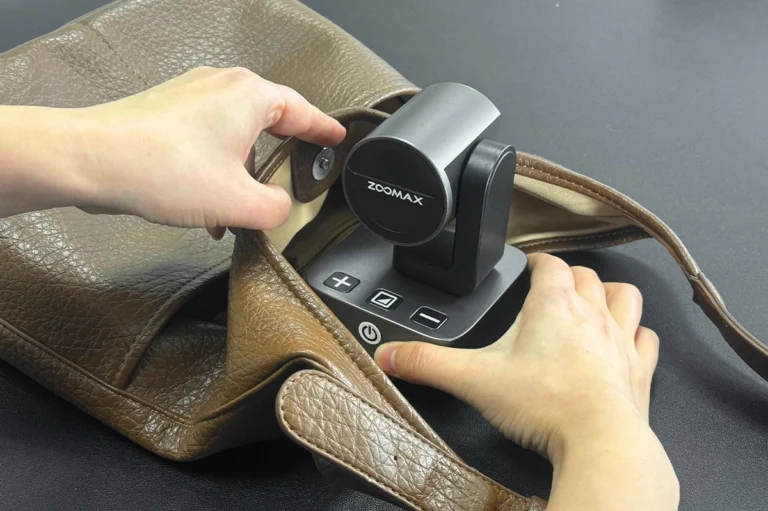
- On-the-go lecture attendance: Compact and lightweight, Snow Eye fits easily into a backpack. Bring it along to guest lectures, seminar rooms, and different classroom buildings across campus—your full setup travels with you, so you never miss fine details no matter where class is held.
Beyond the practical benefits, having this kind of seamless workflow makes a real difference in how you feel at school. You can participate in class, keep up with lessons, and take notes on your own terms, with no mental load of juggling multiple devices.
Zoomax USA Limited-Time Back-to-School Offer – Ends September 20
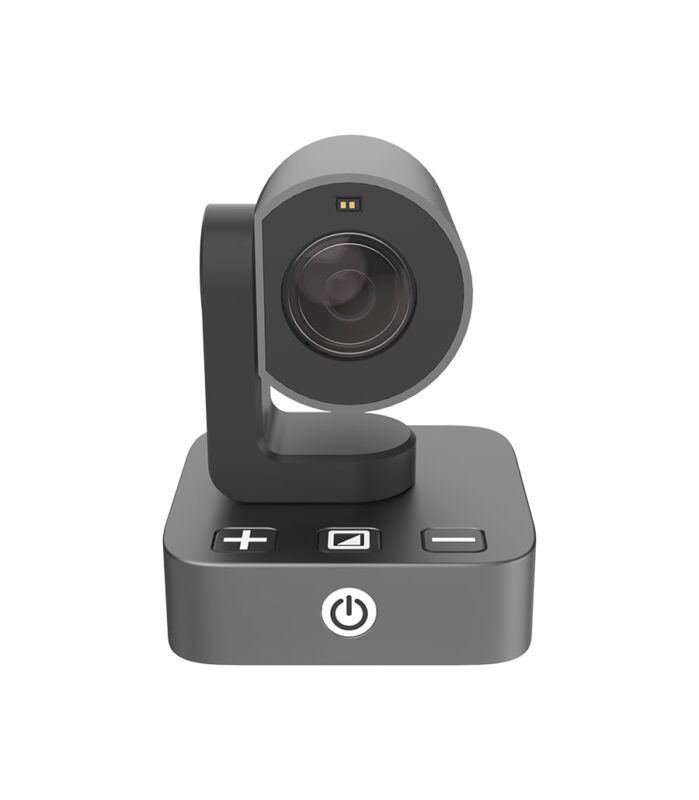
Snow Eye
Rated 5.00 out of 5
$725.00
Snow Eye is a portable digital distance-viewing magnifier designed to connect your laptop and monitor. Its compact body—weighs only 350 grams (about 0.77 lbs)—makes it easy to be stored in your handbag or backpack for easy access anywhere. Equipped with a high-definition optical zoom lens and a 5-hour-long battery life, Snow Eye allows users with low vision to effortlessly view objects from 2 meters to even tens of meters away without worrying about finding a power outlet anytime. It’s simple to operate and can be learned in a minute, suitable for vision loss individuals of all ages!
Act now and lock in our exclusive student pricing for Snow Eye, available only for a limited window this back-to-school season:
- Special discounted price: $655 (regularly $725 – save $70 instantly)
- 6-month extended warrantyincluded at no extra cost
- $50 Amazon Gift Cardissued upon delivery confirmation
- Complimentary free shipping
Don’t miss this chance to pair Snow Eye with the software tools above and build a fully integrated, all-scenario learning setup tailored to your vision needs.
Work Smarter & Learn With Confidence
From built-in display settings to portable distance-viewing hardware, these five tools cover all core needs of low-vision students: comfortable screen viewing, reduced reading fatigue, focused note-taking, accessible course materials, and clear visibility in the classroom.
At-a-Glance Comparison: 5 Essential Low-Vision Computer Tools for Students
Tool Name | Core Function | Key Use Scenarios |
Built-In Screen Magnification & Display Settings | System-level screen zoom, high-contrast themes, color filters, blue light reduction | Everyday laptop use, all learning platforms (Canvas, Google Classroom, Office), general study sessions |
NaturalReader | AI-powered text-to-speech, support for PDF, Word, web pages and images | Heavy reading weeks, textbook chapter review, commute listening, reducing screen time to rest eyes |
Microsoft OneNote Immersive Reader | Distraction-free reading mode, line focus, text spacing adjustment, read-aloud function | Note-taking, dense lecture materials, focused study sessions, exam preparation |
Adobe Acrobat Reader | Accessible PDF viewing, text reflow, magnification, high-contrast mode | Scanned course handouts, textbook PDFs, practice exam packets, printed course materials |
Zoomax Snow Eye | Portable distance-viewing camera with optical zoom and fast autofocus, live feed to laptop screen | Classroom whiteboards & presentation slides, lab demonstrations, group work, cross-campus classes |
Building the right setup for your vision doesn’t just make school easier—it helps you work more efficiently and participate more confidently. Investing in quality assistive technology for low vision students means you spend less time adapting, more time engaging with the material.
If you’d like to explore more low vision computer aids and learning solutions tailored to students, visit the Zoomax USA online store. We carry a full range of products for visually impaired built for school, work, and daily life. With our back-to-school sale running now, there’s never been a better time to upgrade your setup for the semester ahead.
Frequently Asked Questions
Are the software tools in this guide free for students?
Most of the software tools on this list are completely free. Built‑in screen magnification and display settings come preinstalled on Windows and macOS at no cost. Microsoft OneNote Immersive Reader is free for most students with a valid school email, and the standard edition of Adobe Acrobat Reader plus the basic tier of NaturalReader are also free to use.
Are there any restrictions on what computers Snow Eye works with?
Snow Eye is fully compatible with both Windows and macOS laptops, with no special system requirements. Setup is simple and straightforward for both systems — no complicated configuration needed, regardless of which laptop you use for school.
Do I need to install any software or drivers to use Snow Eye?
Setup requirements vary slightly by system. For Windows laptops, Snow Eye is true plug‑and‑play — no extra software, drivers, or firmware installation is required. For MacBooks, you’ll only need to install the Quick Camera app as a quick one‑time setup before your first use. No ongoing software updates or routine maintenance are required for normal operation.
What warranty and after-sales support come with a Snow Eye purchase?
All Zoomax low-vision devices, including Snow Eye, come with a standard 2-year warranty covering materials and workmanship under normal use. During our back-to-school promotion, your order also includes an extra 6-month extended warranty at no additional cost.
Zoomax USA provides full customer support both before and after purchase; all products ship from a U.S.-based warehouse, and you can contact the Zoomax team anytime for help with product questions, setup guidance, or service needs.
*Third-party trademarks and logos are the property of their respective owners. They are used for identification purposes only and do not imply endorsement or affiliation.